# RELAY

A Blockcast RELAY node is a compact, plug-and-play device that caches and delivers content from the network edge, earning you weekly rewards for sharing your spare internet resources.

* Automatically caches and delivers popular content to you and your neighbors
* Serves as a multicast source via AMT, extending multicast to networks that can't peer directly with a CAST node
* Earns weekly rewards through Proof of Bandwidth verification

## Onboarding Your RELAY Node

### Step 1: Register Your Node

1. Install and start the Blockcast RELAY runtime (see [Hardware Requirement](https://docs.blockcast.network/main/getting-started/hardware-requirement))
2. Generate your hardware identity:

   ```
   docker compose exec blockcastd blockcastd init
   ```

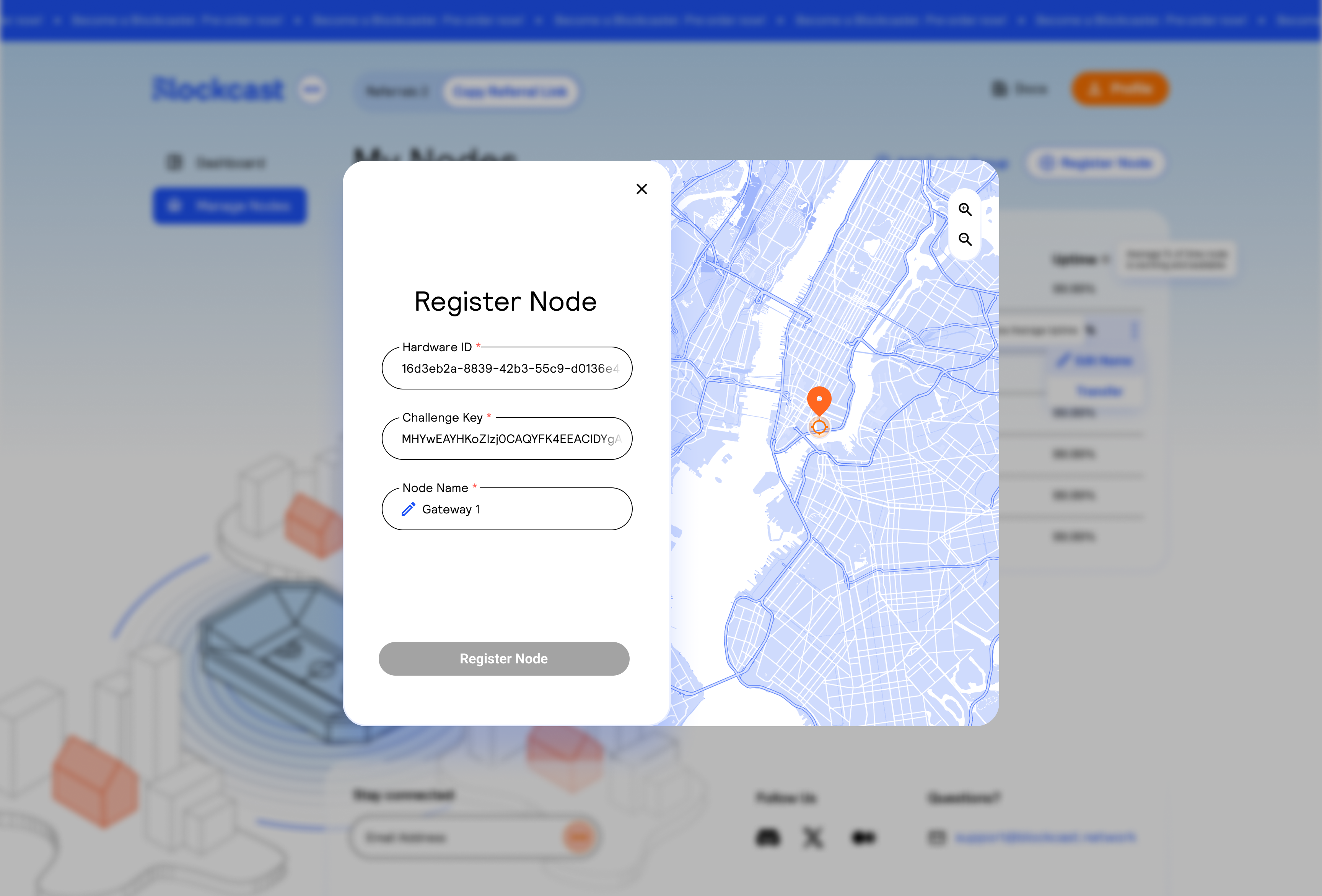
   This produces your **Hardware ID** and **Challenge Key** (an EC P-384 public key unique to your device).
3. Go to the [Blockcast portal](https://app.blockcast.network/) and click **Register Node**
4. Enter your Hardware ID, Challenge Key, and a name for your node

<figure><img src="https://3364791352-files.gitbook.io/~/files/v0/b/gitbook-x-prod.appspot.com/o/spaces%2FXrwmDBB6htefs8IbVcEc%2Fuploads%2Fgit-blob-d7f5554b73c9af434a57ce61b8cfa9d02d55183b%2Frelay-register-node.png?alt=media" alt="Register Node dialog showing Hardware ID, Challenge Key, Node Name fields and a map with location pin"><figcaption><p>Register your RELAY node with its hardware identity</p></figcaption></figure>

5. The portal detects your location from your IP address. Allow location access for a more precise pin.
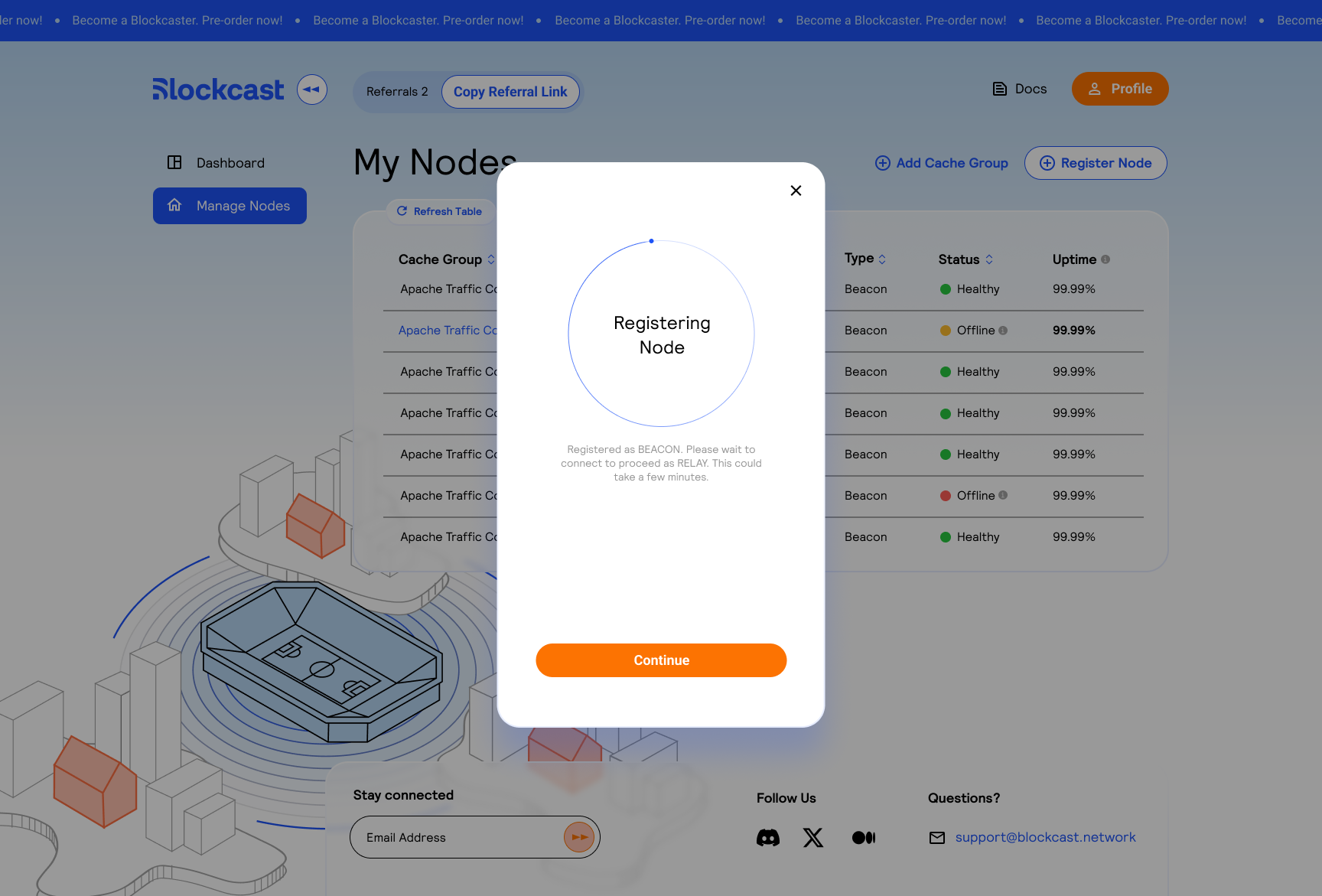
6. Wait for the node to connect. The portal shows a "Registering Node" screen while it syncs with the gateway during the initial connection.

<figure><img src="https://3364791352-files.gitbook.io/~/files/v0/b/gitbook-x-prod.appspot.com/o/spaces%2FXrwmDBB6htefs8IbVcEc%2Fuploads%2Fgit-blob-16bb949aaee17b84bce95361b7e8086eb8316353%2Frelay-registering-node.png?alt=media" alt="Registering Node screen showing connection spinner while gateway syncs"><figcaption><p>The portal syncs with your gateway during initial registration</p></figcaption></figure>

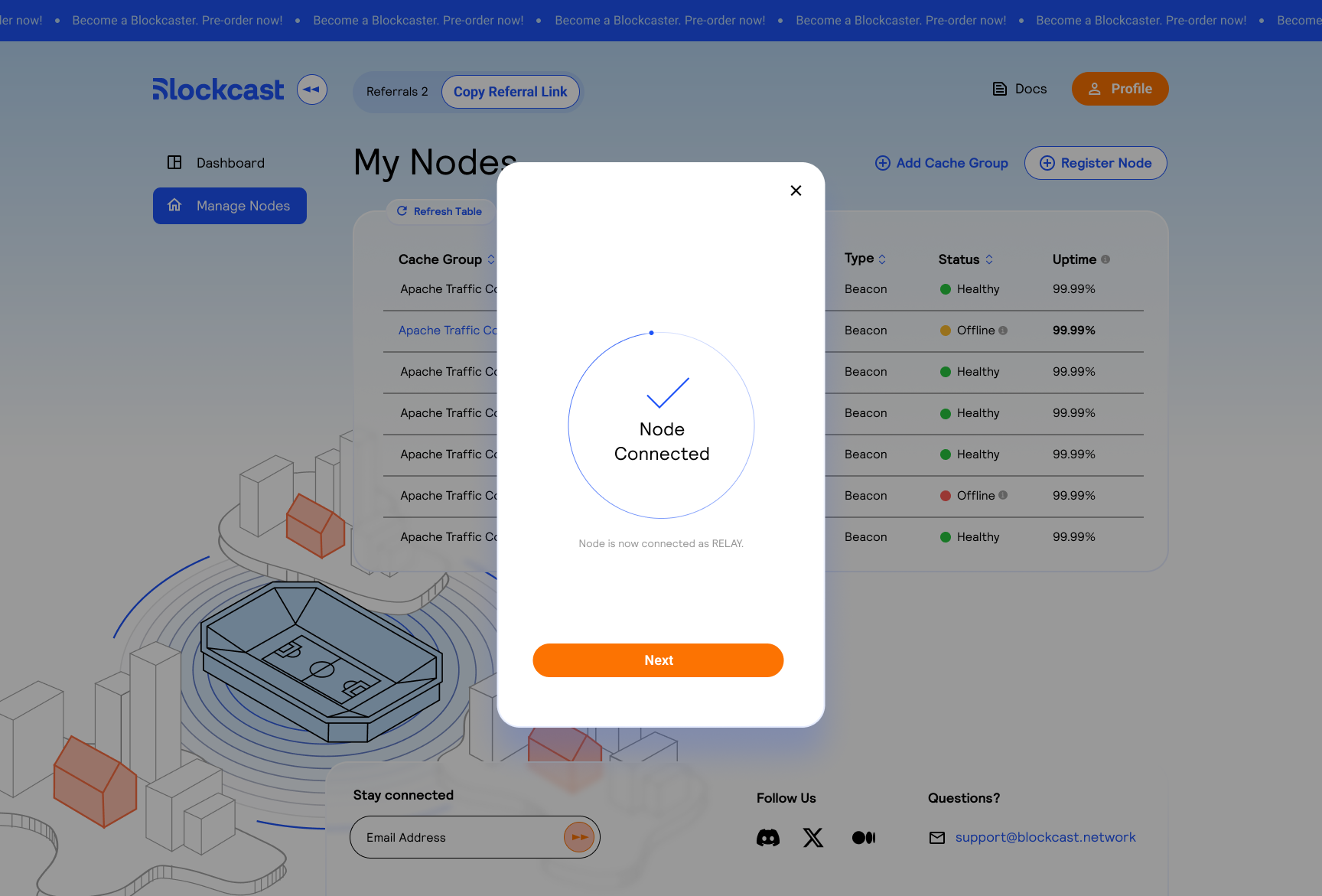
7. Once connected, you'll see the "Node Connected" confirmation. Your node starts as a **BEACON**.

<figure><img src="https://3364791352-files.gitbook.io/~/files/v0/b/gitbook-x-prod.appspot.com/o/spaces%2FXrwmDBB6htefs8IbVcEc%2Fuploads%2Fgit-blob-8acb56dd255c86312b1dc4c826cc8f9642c93a15%2Frelay-node-connected.png?alt=media" alt="Node Connected confirmation screen"><figcaption><p>Your node is now connected and registered as a BEACON</p></figcaption></figure>

### Step 2: Stake to Upgrade to RELAY

Your node starts as a BEACON (attestation-only). To unlock caching, bandwidth commitments, and full RELAY rewards, you need to stake tokens on-chain.

1. Complete the staking transaction from your wallet
2. The portal automatically detects your stake and upgrades your node to RELAY status

### Step 3: Configure Storage

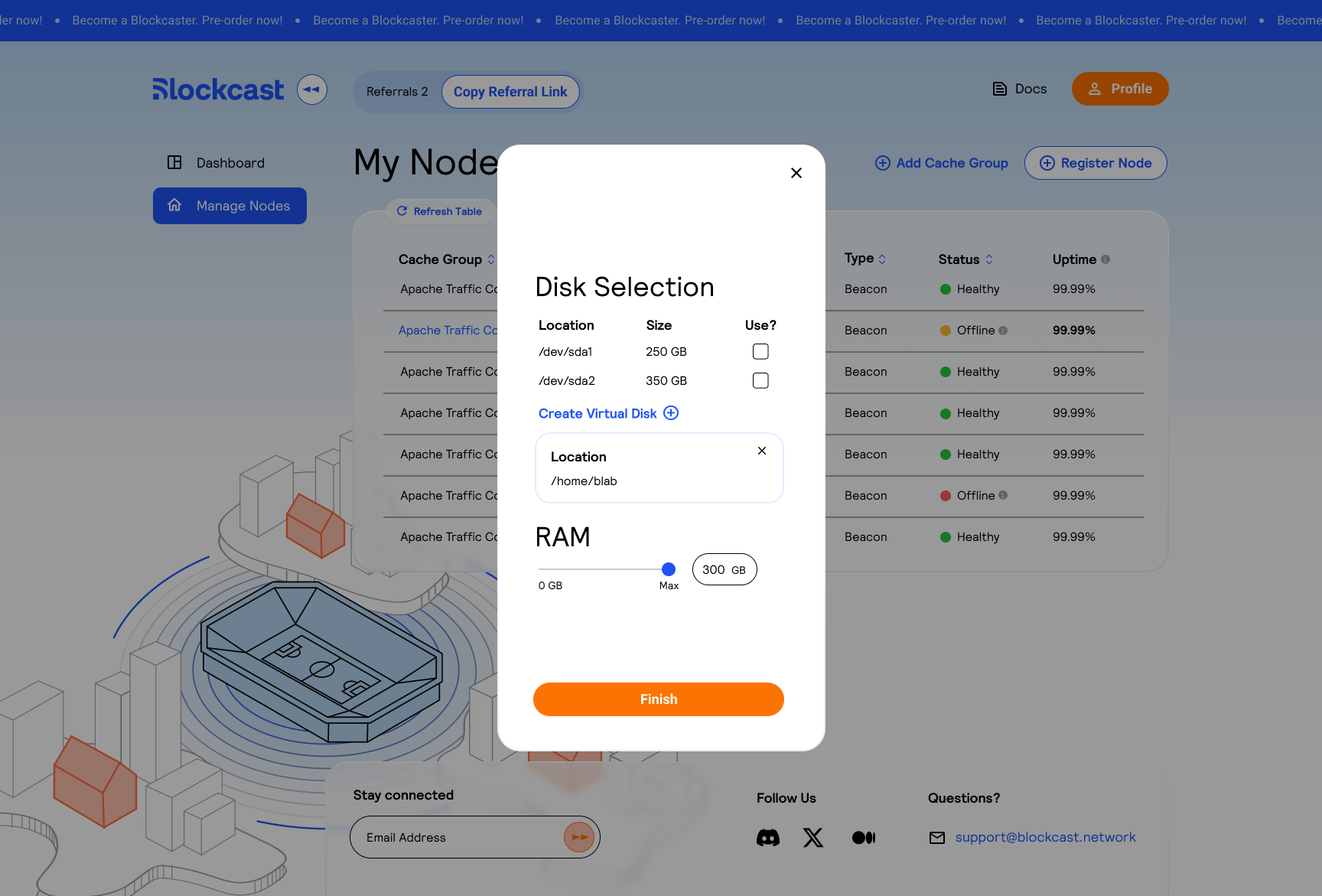
Select which disks to allocate for content caching and how much RAM to dedicate.

<figure><img src="https://3364791352-files.gitbook.io/~/files/v0/b/gitbook-x-prod.appspot.com/o/spaces%2FXrwmDBB6htefs8IbVcEc%2Fuploads%2Fgit-blob-f6a45147324b71b7f8b0e7da5a2049b3e524152f%2Frelay-disk-selection.png?alt=media" alt="Disk Selection dialog showing physical disk list with checkboxes, Create Virtual Disk option, and RAM slider"><figcaption><p>Select physical disks or create a virtual disk, and set the RAM allocation</p></figcaption></figure>

* **Physical disks**: Select drives from the detected list (e.g., `/dev/sda1`, `/dev/sda2`)
* **Virtual disk**: Click "Create Virtual Disk" to use a custom path (useful for loopback mounts or NVMe partitions)
* **RAM**: Drag the slider to allocate memory for the in-memory cache layer

### Step 4: Define Bandwidth Commitments

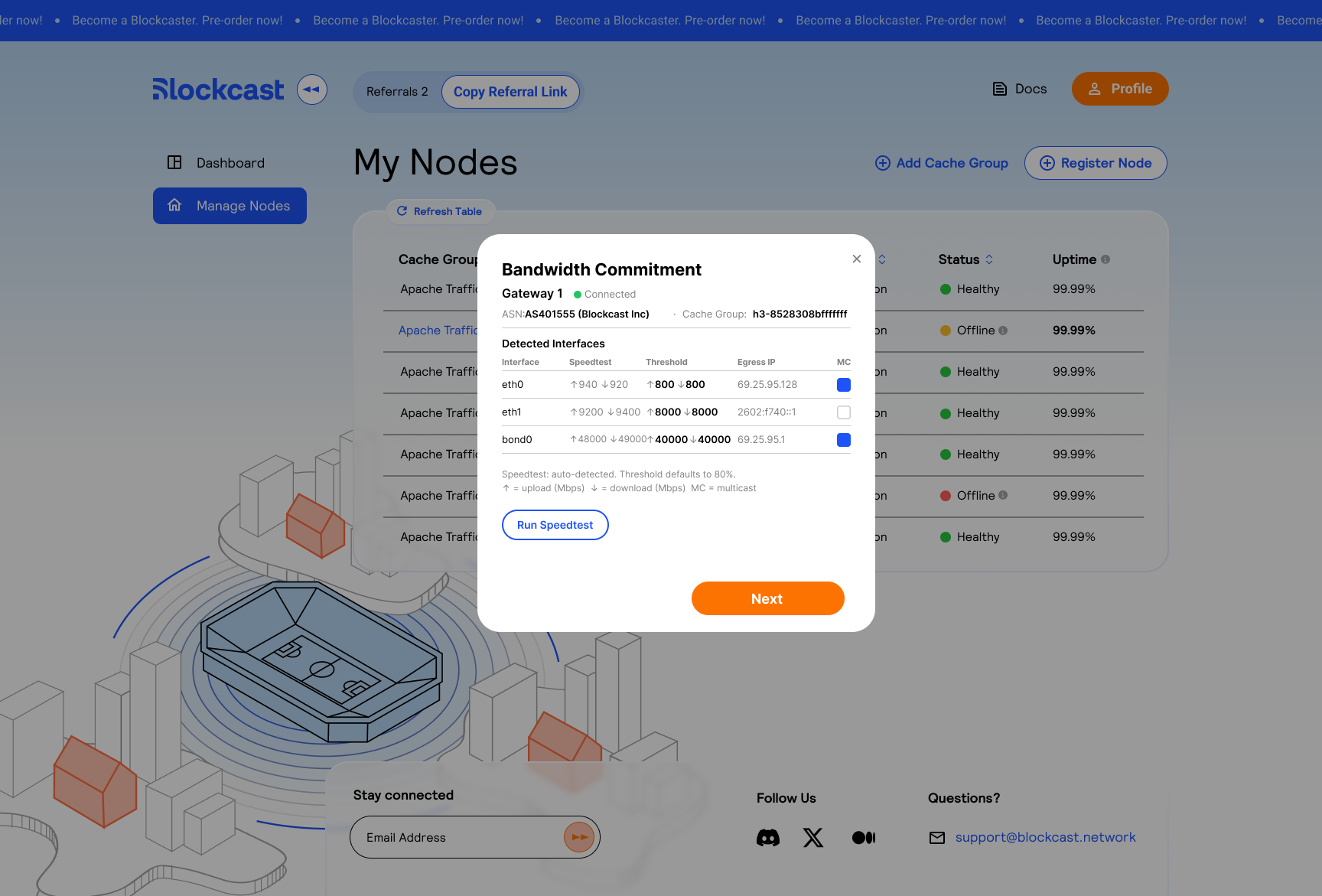
This is where you tell the network what capacity you're contributing. Your gateway's network interfaces are auto-detected, and a speedtest runs per interface to measure available bandwidth. Your ASN and cache group are shown based on the verified autonomous system associated with your operator identity.

<figure><img src="https://3364791352-files.gitbook.io/~/files/v0/b/gitbook-x-prod.appspot.com/o/spaces%2FXrwmDBB6htefs8IbVcEc%2Fuploads%2Fgit-blob-956480aad08020612a433a86eaea73e72a28e37d%2Frelay-bandwidth-commitment-v2.png?alt=media" alt="Bandwidth Commitment dialog showing detected interfaces with speedtest results, threshold limits, egress IPs, and multicast checkboxes"><figcaption><p>Set bandwidth threshold limits per detected network interface</p></figcaption></figure>

Your ASN and cache group are displayed at the top. The portal auto-detects your network interfaces and runs a speedtest on each to measure upload and download capacity.

For each detected interface, set the bandwidth threshold you want to commit. The threshold defaults to 80% of the detected speedtest result, but you can adjust it:

| Field         | Description                                                                              |
| ------------- | ---------------------------------------------------------------------------------------- |
| **Interface** | Auto-detected network interface name (e.g., eth0, eth1, bond0)                           |
| **Speedtest** | Measured upload and download speed in Mbps (auto-detected)                               |
| **Threshold** | Upload and download bandwidth you're committing (editable, defaults to 80% of speedtest) |
| **Egress IP** | Detected public IP for this interface (from dynamic DNS)                                 |
| **MC**        | Check if this interface supports multicast delivery                                      |

Click **Run Speedtest** to re-measure interface speeds at any time. The Traffic Router aggregates all committed thresholds across servers in your cache group for saturation-aware routing decisions.

These commitments are verified by the Proof of Bandwidth system. PoB runs periodic challenges against your committed thresholds and records verified results. Your RELAY earns rewards proportional to verified capacity.

### Step 5: Hardware AMT Offload (Optional)

Every RELAY node runs Linux kernel AMT by default, so no extra AMT configuration is needed for most operators.

> **Juniper MX operators:** If you have Juniper MX routers (MX204, MX240, MX480, MX960) and want to offload AMT relay processing to dedicated hardware for higher tunnel scale, the portal offers an optional configuration step. See [Juniper MX AMT Hardware Offload](https://docs.blockcast.network/main/getting-started/how-do-i-participate-in-the-network/relay/relay-amt) for the full setup guide with screenshots.

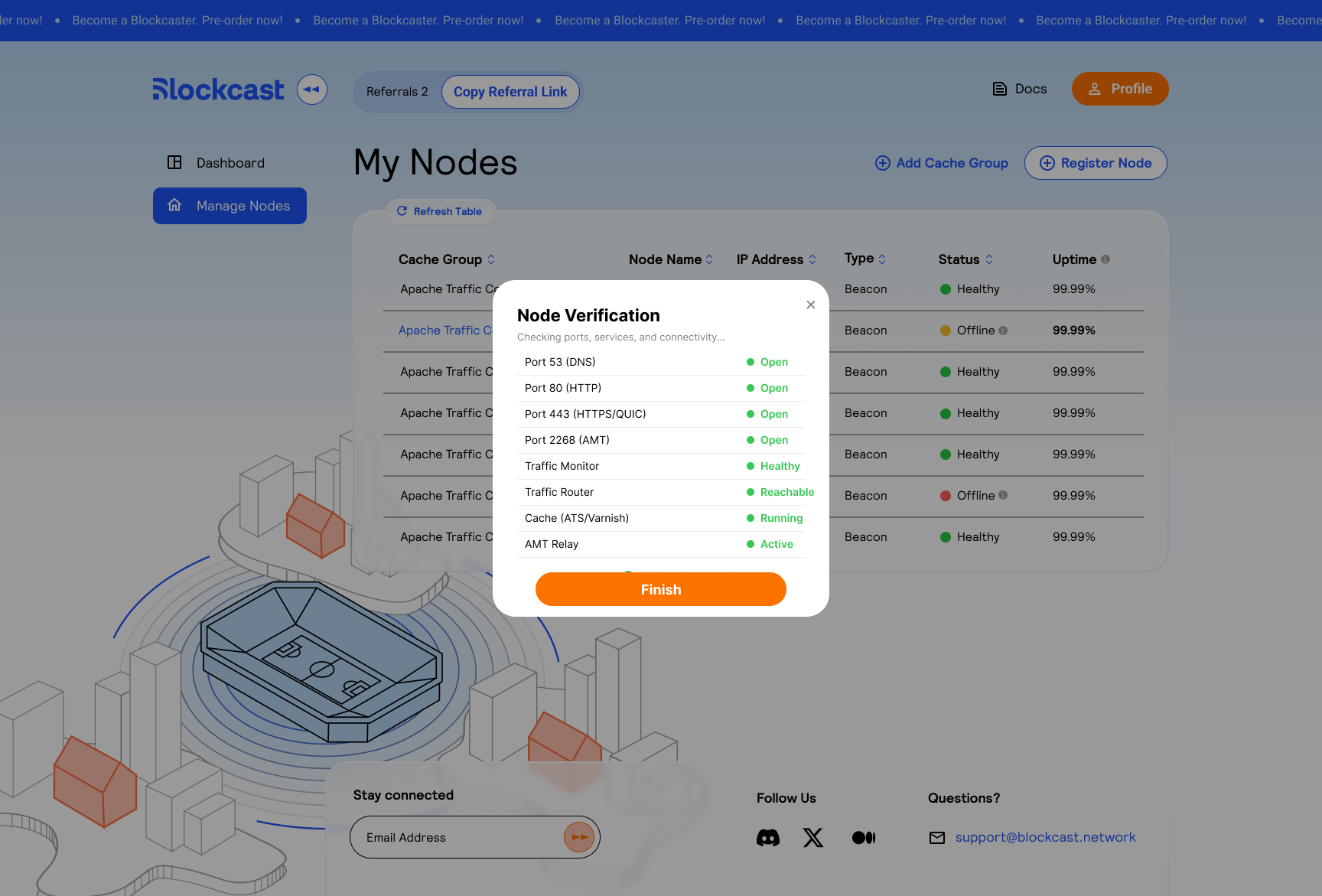
### Step 6: Node Verification

Before your node goes live, the portal runs a verification check across all required services and ports.

<figure><img src="https://3364791352-files.gitbook.io/~/files/v0/b/gitbook-x-prod.appspot.com/o/spaces%2FXrwmDBB6htefs8IbVcEc%2Fuploads%2Fgit-blob-9f62049640f21cc8d98ff348bfc4a00f46aed928%2Frelay-node-verification.png?alt=media" alt="Node Verification checklist showing port 53, 80, 443, 2268, Traffic Monitor, Traffic Router, Cache, and AMT Relay status"><figcaption><p>The verification step checks that all required ports are forwarded and services are reachable</p></figcaption></figure>

The following checks must pass:

| Check                     | What it verifies                                 |
| ------------------------- | ------------------------------------------------ |
| **Port 53 (DNS)**         | DNS port is open for Traffic Router              |
| **Port 80 (HTTP)**        | HTTP port is open for content delivery           |
| **Port 443 (HTTPS/QUIC)** | HTTPS and QUIC ports are open                    |
| **Port 2268 (AMT)**       | AMT relay port is open for multicast tunnels     |
| **Traffic Monitor**       | TM can reach your node and reports it as Healthy |
| **Traffic Router**        | TR can route traffic to your node                |
| **Cache (ATS/Varnish)**   | Cache process is running and serving content     |
| **AMT Relay**             | AMT relay is active and processing tunnels       |

Once all checks pass, click **Finish** to complete onboarding.

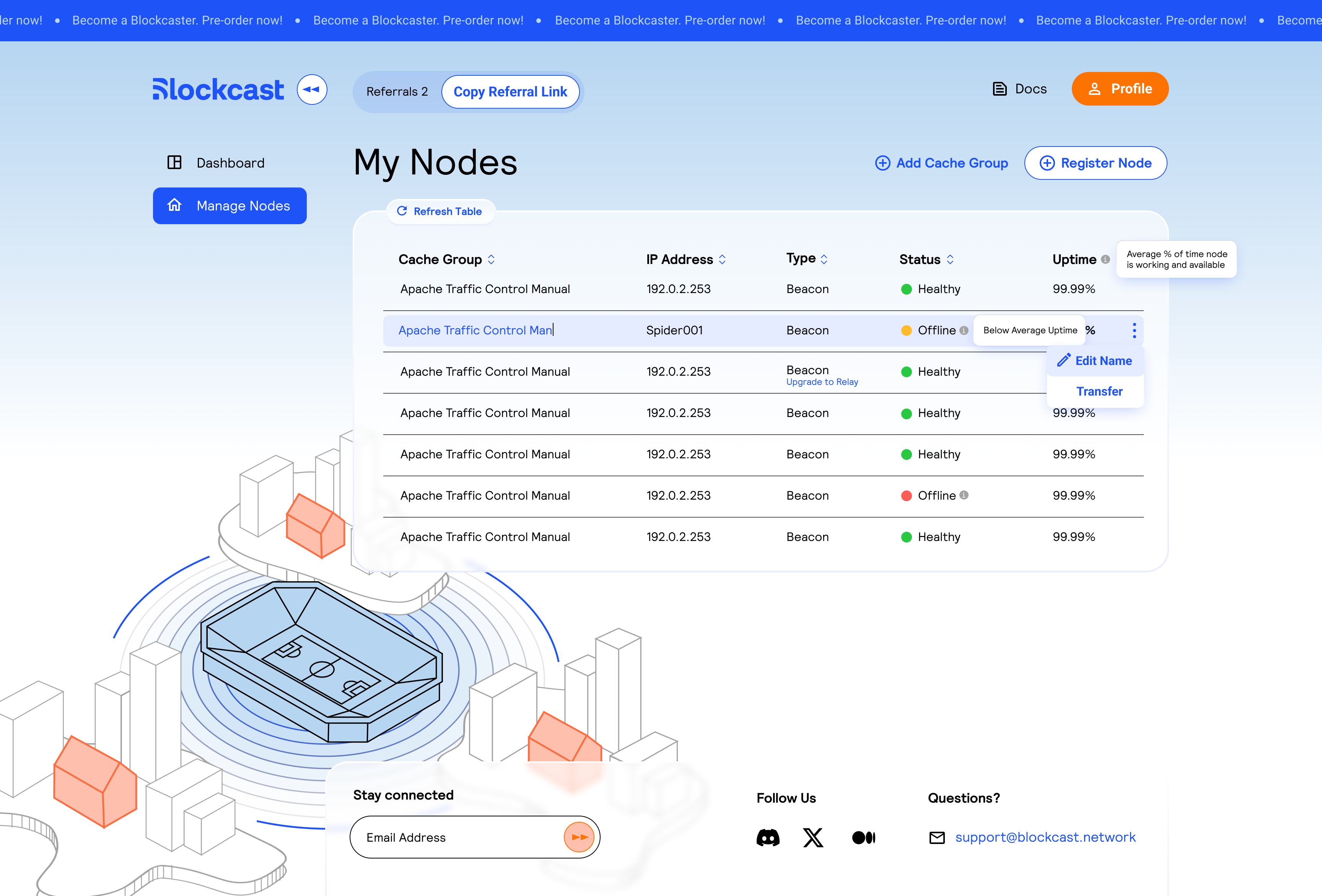
### My Nodes Dashboard

After completing setup, your node appears in the **My Nodes** dashboard.

<figure><img src="https://3364791352-files.gitbook.io/~/files/v0/b/gitbook-x-prod.appspot.com/o/spaces%2FXrwmDBB6htefs8IbVcEc%2Fuploads%2Fgit-blob-66ab6cf02927851929620f9059156fe9fbf327f0%2Frelay-my-nodes.png?alt=media" alt="My Nodes dashboard showing table with Cache Group, Node Name, IP Address, Type, Status, and Uptime columns"><figcaption><p>My Nodes dashboard shows the health and uptime of all your RELAY nodes</p></figcaption></figure>

* **Healthy** status means your node is online and serving traffic
* **Uptime** shows the percentage of time your node has been available and reachable
* Use the context menu (three dots) to **Edit Name** or **Transfer** the node to another account

## What Happens After Setup

Once your RELAY is online:

1. **Traffic Monitor** probes your node every 10 seconds for health and performance
2. **Proof of Bandwidth** challenges run periodically to verify your committed capacity
3. **Traffic Router** directs end-user requests to your node based on geography, health, and verified bandwidth
4. **Rewards** accrue based on verified bandwidth, uptime, and content served

## Advanced: AMT Hardware Offload

For operators running Juniper MX routers who want to offload AMT relay processing to dedicated hardware, see [Juniper MX AMT Hardware Offload](https://docs.blockcast.network/main/getting-started/how-do-i-participate-in-the-network/relay/relay-amt). This is optional, as Linux kernel AMT runs by default on every RELAY node.